START HERE

From download
to your first task.

Use the website for your account. Use Desktop 1.3.9 for media, AI, creation, file tools and PC cleanup.

Your desktop & local tools6 topics

The combined Windows app

  1. Download the complete Windows ZIP from your account. Choose Extract all and keep every folder together.
  2. Close an older Delirium Desktop copy, then run DeliriumDesktop.exe from the extracted folder. Do not run it inside the ZIP.
  3. Use Home for Media, Free AI, AI chat & tasks, Creation studio and PC Cleaner. Expand the menu groups for other tools and settings, or press Ctrl+K to find a feature.
  4. Activate Account for full Delirium features. Media and the Free AI directory are available in the app before activation. Downloading through this website still follows your account access.
  5. Open Section colors to change individual colors or enable one shared color. Find wallpaper options in Media → More → Media settings.
  6. Use the clock for the calendar and the shared footer for volume and Desktop controls. Big picture is available with F11.

Desktop 1.0 settings carry forward. The older standalone Delirium app uses a separate profile; activate and configure this combined app as needed. Your website membership remains the same.

Update the complete folder

Download and extract a new complete Desktop release. Do not replace only the executable or mix files from different releases. Desktop 1.3.9 uses manual complete-package updates; it does not use the older standalone app updater.

Embedded Reaction Studio

Open Creation studio and Reaction Studio, add your sources, then record. OBS runs within the combined app. Fully shutting down Desktop releases its engine and finalizes an active recording; hiding an app in the tray keeps it running.

Media services and devices

Web services retain their own accounts, subscriptions and playback rules. Controller, casting and tuner support depends on your device and configuration. Connected AI subscriptions, API usage and local models remain separate from Delirium membership.

Make the new controls yours

Choose what closing the window does

When you close the window, choose Hide in tray or Shut down. Select Don’t ask again to remember your choice, and change it later in Settings → Desktop preferences.

Hiding keeps Delirium running and connected. Shutting down restores the connection settings managed by Delirium before the app exits.

Completion sounds, tray and language

Open Settings → Desktop preferences to choose completion sounds, background completion notifications, close-to-tray behavior and your interface language. When Delirium is in the system tray, look for its icon in Windows hidden icons. Double-click the icon to reopen the window, or right-click it and choose Exit Delirium to quit. Windows decides whether the icon appears directly in the taskbar or its hidden-icons area.

Choose English, Spanish, French, German or Portuguese under Display language, then select Apply language. Main navigation, settings and common controls are translated. Some advanced help, reports and Windows messages remain in English.

App cleanup

Open Maintenance & security and choose Analyze caches. Delirium reviews older temporary files, DirectX shader caches, and supported Chrome or Edge caches. Close browsers before cleaning their caches, select findings, then choose Review selected cleanup and read the confirmation. Cleanup moves files into Delirium’s recovery storage; these copies still use disk space. Use Restore cleaned files if you need them back.

After checking that your apps work, use Reclaim backup space to select recovery copies you no longer need. Permanently remove selected backups opens a separate confirmation. Removing these backup copies frees their disk space and ends the ability to restore those files. Use Restore before removing if you need a copy first.

Under Installed applications, choose Manage / uninstall apps to review software in Windows Settings.

Windows security

Open Maintenance & security to check Microsoft Defender availability and status. Choose an available scan when you want Windows to check for threats. Use Windows Security for protection history and threat actions. Administrator approval or an active Microsoft Defender service may be required.

PC information

Open PC information for a hardware summary and component categories. Select Windows, processor, memory, motherboard, graphics, storage, audio, network or sensors for details. Refresh the snapshot when needed, select individual values to copy, or use Copy PC information and Save PC report. Unavailable readings stay marked as unavailable; thermal-zone readings are not CPU or GPU temperatures. This page does not change your Windows configuration.

Desktop layout & shortcuts

YOUR DESKTOP WORKSPACE

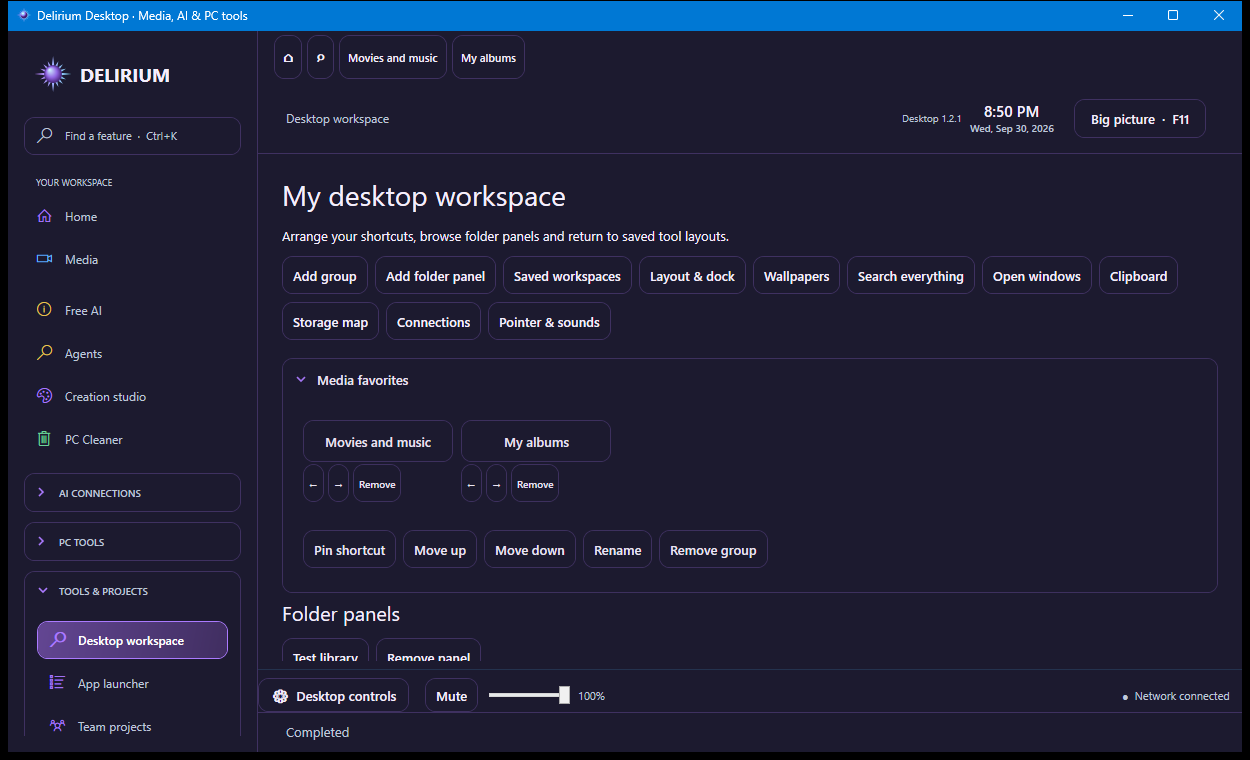
Arrange shortcuts into collapsible groups, pin chosen folders, and save your open tools and linked pop-out positions. A favorites and open-tool dock keeps them close. Press Ctrl+K to search sections, tools, media and file names in your chosen folders; Enter opens the selected result.

Make it yours

Choose compact or larger touch controls, tile sizes, labels, panel opacity, section colors and reduced motion. Export or import your workspace layout. Use image collections, muted video wallpapers or a different media wallpaper for each display.

Useful desktop controls

Switch between open Windows windows, review your session clipboard, inspect a chosen folder’s storage map, and see process-owned TCP connections. Clipboard image history is optional and stays in memory; storage scanning does not delete files. Optional cursor and shortcut sounds apply inside Delirium.

Delirium Desktop workspace with shortcut groups, folder panels and utility controls
Desktop workspace in the combined app. Select the image to view the full screenshot.

Saved workspaces do not start recordings or streams. These desktop features work inside Delirium; Windows-wide skins, remote KVM and virtual display drivers are not included.

Assistant tools

Activate this PC, then open AI chat & tasks. Auto uses your saved permitted routes and cost preference. Configure connections once; Enter sends and Shift+Enter adds a line. Use Connections and Tools → Connection health to understand unavailable clients. A saved connection is not proof of access to every model.

Search chats on the left. Conversation → Rename / move organizes them; Branch creates an independent continuation. Edit last prompt / retry restores available attachments for your review and creates a new task only when you send. Stop cancels an active or queued task. Tools → Task queue shows retained progress and results. Reconnect task is available for supported interrupted OpenAI background responses; other interrupted work needs review before resubmission.

Tools → Project memory stores only facts you explicitly approve. Project facts follow your selected project folder; global facts apply everywhere. Tools → Attach documents selects up to six files. Select files from a project folder opens a file picker; it does not upload the folder. Preview selected context before sending. File evidence is treated as untrusted data, with source references. Scanned PDFs need OCR; very long extracts are bounded.

Hold to dictate uses the installed Windows recognizer and leaves the text in the composer. Release stops listening. Read answer speaks a completed answer; Stop speaking interrupts it. API voice is a separate supported connection and uses its own provider account.

Choose a built-in task recipe or install a JSON skill with name, instructions and permissions: ["draft"]. Skills cannot grant tools or execute code. Show / hide agent avatar saves your display preference.

Creation Studio offers caption transcription, publishing drafts and thumbnail generation. Streaming assistance prepares a diagnostic task without stream keys. Media discovery uses allowed library metadata. PC information can prepare a troubleshooting task; actual repairs still use their own preview and supported undo. Messaging → Summarize / draft sends selected evidence to the composer; review and send the AI task explicitly, then choose Use AI draft and Send yourself if you want to post it.

API billing is separate. Spending caps stop a request when its maximum cost cannot be estimated. Transcription is limited to two hours per operation, processed in ten-minute parts; stopped work preserves completed captions. No uncertain API request is automatically replayed.

Tutorial companions

NEW IN DESKTOP 1.3.1

Animated pixel characters, guided tutorials and a cleaner desktop experience join the existing assistant, media and creation tools.

Pixel companions

Choose Orbit, Nova, Ember, Sage, Spark or Alex. Their animated pixel artwork includes idle, walking, pointing and talking states. Create a custom character or import portraits, GIFs and state animation packs.

An interactive guide

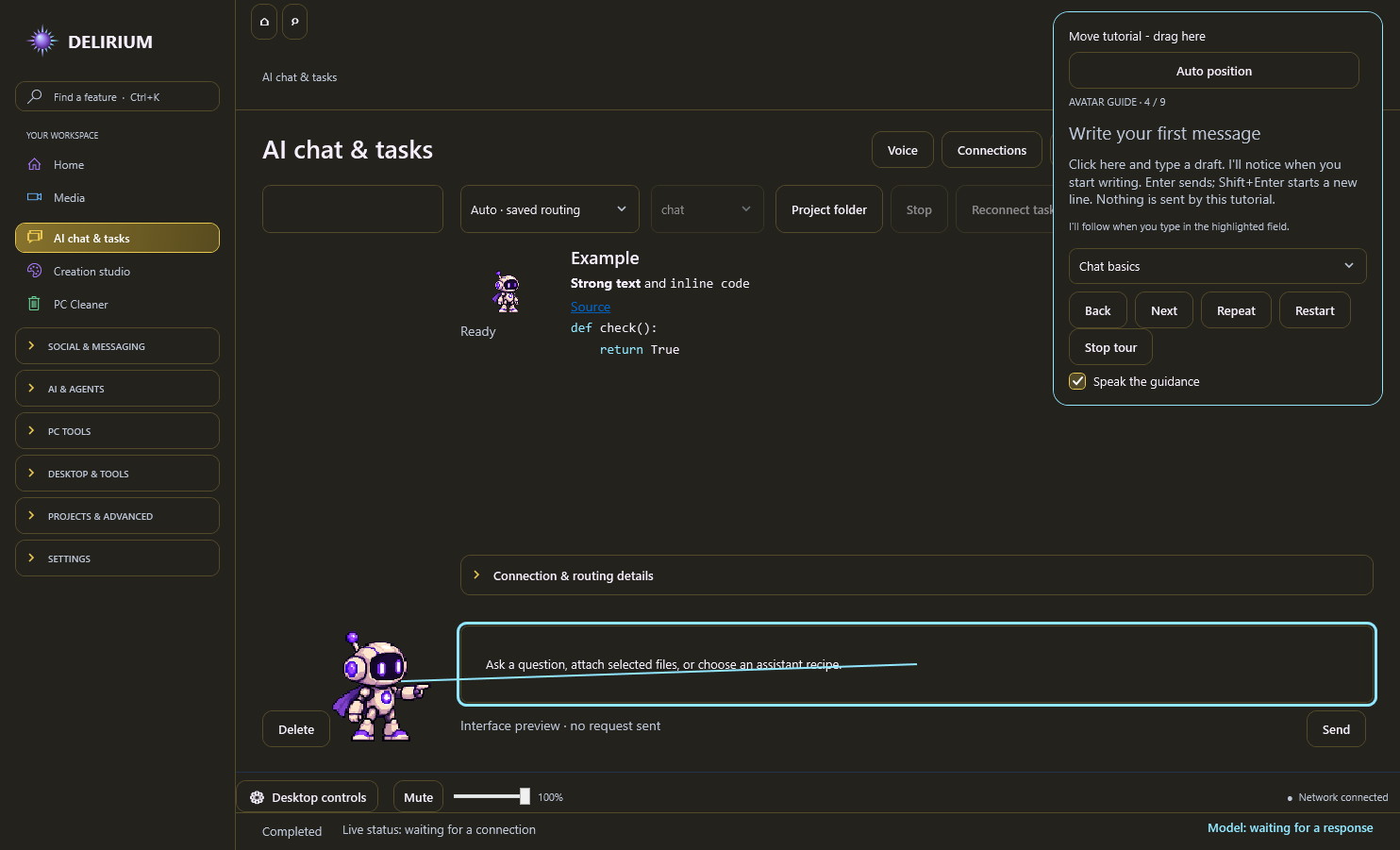
Full and focused tours highlight real controls and follow your clicks, selections and typing. Drag the tutorial card wherever you want, or restore Auto position. Friendly local speech uses the Windows voices available on your PC.

A clearer chat workspace

Your companion sits to the left of the conversation. Advanced tools and routing details collapse when you do not need them, with a saved-chat picker at smaller window sizes.

Uninterrupted fullscreen

Video fullscreen hides the app header, clock, desktop dock and tutorial. The interface returns when you leave fullscreen.

Wallpapers, screensaver and tray

Find wallpapers and screensaver settings in Desktop controls, Desktop workspace or Media → More. Choose a clock, wallpaper slideshow or black idle display. Hide to the system tray, restore the app or choose an exit behavior.

Responsiveness and readability

Idle AI polling backs off, artwork decoding uses a bounded cache, colors remain readable across themes, and inactive browser sessions can be suspended explicitly.

Safer project context and voice

Project memory requires a selected project folder. Releasing dictation preserves the final recognized phrase. Setup guidance explains account, connection and capability requirements.

Delirium 1.3.1 draggable tutorial beside a highlighted chat composer; no AI request was sent
Companion interface preview: the movable guide highlights the message field.

Provider accounts and activation requirements remain. Local narration quality depends on installed Windows voices. Imported artwork does not import a provider account or private agent data.

Backups, recovery & diagnostics

DESKTOP 1.3.11 / WORKSPACE & RECOVERY

Choose Home cards for Media, Creator or Productivity, and follow AI tasks, recording, exports, downloads and publishing from Activity center.

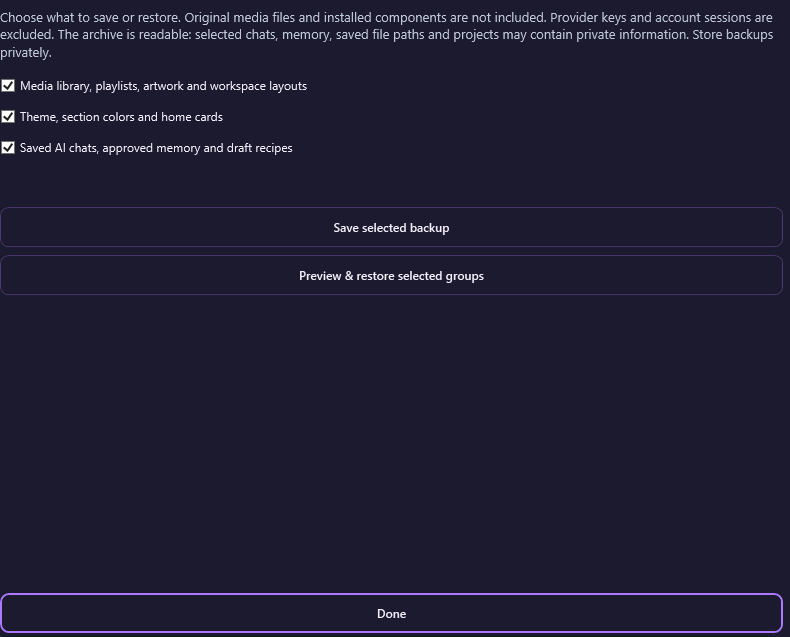
Save a selective suite backup of library settings, appearance, chats, approved memory and draft recipes. Preview restores and keep recovery copies. Backups are readable and may contain private information; original media, installed components and credentials are excluded.

Find document passages with optional local semantic search using an installed Ollama embedding model, or keep keyword search. Optional Windows OCR reads up to ten PDF pages using installed OCR languages. Review recognized text before including it in a request.

Compare saved AI trials and run an optional short local export benchmark. Reports show observed timing and estimated costs, with clear limits. They are not an overall intelligence or gaming score. Provider charges still apply to AI trials.

Supported publishing adapters verify destination identity before submission and distinguish upload progress from confirmed publication. Automatic adapters remain YouTube, Discord webhooks and Mastodon; other services keep their existing requirements.

Signed, version-matched component downloads support staging and rollback after restart. The complete download keeps its bundled creative tools and WebView2. Optional LocalSend, Zotero, ShareX and PowerToys connections launch separately installed apps and provide setup guides.

Use light, dark or high-contrast appearance, enlarge dialog text and navigate dialogs with a controller. Updated tutorials explain the new tools.

Delirium suite backup with separately selectable media, appearance and assistant groups
Selective suite backup · Desktop 1.3.11.
Setup & getting started8 topics

Three steps to get started

1

Sign in to your account

Use the email linked to your membership. New users can start a seven-day trial without a payment or automatic charge. Lifetime members do not need another plan.

Open your account →
2

Download and open Delirium

Download the latest Windows app from your account and open the file. Requires Windows 10 or 11, 64-bit.

Download details →
3

Activate this PC

Generate an activation code on your account page. In the app, open Account, paste the code, and select Activate this PC. Codes expire in ten minutes.

Manage your PCs →

What would you like to do?

The app’s Start here screen has the same guide. Press Ctrl + K to search by feature name or description.

Ask AI to help with a task

In the app: AI chat & tasks

Use Auto: apps & models, choose your allowed connections, and send a task. Follow the selected connection and any fallback attempts, then review the returned answer and checks.

Open an AI app or coding client

In the app: App launcher

Select several installed apps, or use Select installed to choose one option per detected app. Launch selected opens them together, keeps each displayed launch mode, and reports any app that could not start.

Reuse prompts and save time

In the app: Presets & shortcuts

Save instructions, compare two models, use optional clipboard history, or extract text from images.

Inspect files without an AI request

In the app: File & data tools

Find identical files, explore CSV data, and check JavaScript or JSON syntax on your PC.

Review unwanted apps and files

In the app: PC Cleaner

Choose a scan, review findings, and approve selected actions. Scanning itself does not delete files.

Review or undo supported cleanup

In the app: Recovery & scans

Read saved reports and restore actions that support recovery.

Connect an AI service or local model

In the app: AI connections

Set up your own provider access, allowed models, and preferences.

Explore relationships in a dataset

In the app: Data relationships

Inspect statistical relationships. These results do not prove cause and effect.

Run advanced code checks

In the app: Code sandbox

Use supported isolated checks with Docker Desktop installed.

Manage diagnostics and feedback

In the app: Feedback & privacy

Review optional sharing before sending diagnostics.

Keep the app current

In the app: Updates

Check for a new release and review it before installation.

Manage access and preferences

In the app: Account / Settings

Activate up to three PCs, refresh membership, and adjust app settings.

Feature details and app screenshots →

Launch multiple apps

Select several installed apps, or use Select installed to choose one option per detected app. Launch selected opens them together, keeps each displayed launch mode, and reports any app that could not start.

Website links open individually. Missing apps are not installed automatically, and launching an app does not send your task.

Connected coding clients may ask you to choose a project folder before the selected apps launch.

Need a hand?

Codex fails when I choose Launch with Delirium

Download the current complete Desktop package from your account. Quit Codex and reopen it from Delirium’s App launcher. This release fixes an activation-location mismatch in the launcher; an already activated PC does not need a new membership purchase.

I have lifetime access but the app is locked

Sign in with the same email on the website. Generate a fresh code and activate the PC in Account. If already activated, choose Refresh membership. You do not need to purchase access again.

I can’t find a feature

Open Start here or press Ctrl+K. Search for a task such as “duplicates”, “CSV”, “clipboard”, or “activation”.

Can I use Delirium offline?

After activation, membership access lasts up to 30 days between successful checks, within the remaining trial or paid period. Local tools stay on your PC. Cloud AI still needs an internet connection.

Windows or my browser warns about the download

Download only through your Delirium account. A new or unsigned app can show publisher or reputation warnings. See the current signing status and verification details before proceeding.

Download verification →

Task status & progress

Live status appears below the workspace and refreshes automatically. In a supported connected assistant, ask for Delirium status to read the same observed connection evidence without making a paid model call.

An enabled connection alone is not proof of a working chat. Closed, disconnected and unobserved sessions are reported clearly. This status does not test every provider or identify an unrelated open chat.

Qwen and DeepSeek

Open their web chats from Delirium, or use your own API account to bring answers into Delirium chat. API keys, billing and model access are separate from app subscriptions. Qwen requires the official endpoint for your workspace.

Free-first AI routing

Automatic routing prefers a suitable configured local model or a Gemini API project you have confirmed has billing disabled for simple questions. Suitability is estimated from the task and model settings.

If no suitable free route completes the request, Delirium explains why it could not send and keeps your draft. Paid fallback is a saved preference in Routing tools, so you do not have to choose free or paid for every message. Browser handoffs do not send your question or return the answer automatically. Provider free access and quotas may vary.

More demanding tasks keep normal model routing. Manually selected providers keep their chosen route. Subscriptions, promotional credits and unknown prices are not treated as free.

Connected tools

  1. Open a creation tool in Delirium, then choose Pop out to move its current session into a linked window.
  2. Continue working there while visiting other app sections. Dock back or the window close button returns the same project to Delirium.
  3. Use Close tool when you want to end the tool session. Save or export browser projects before closing.
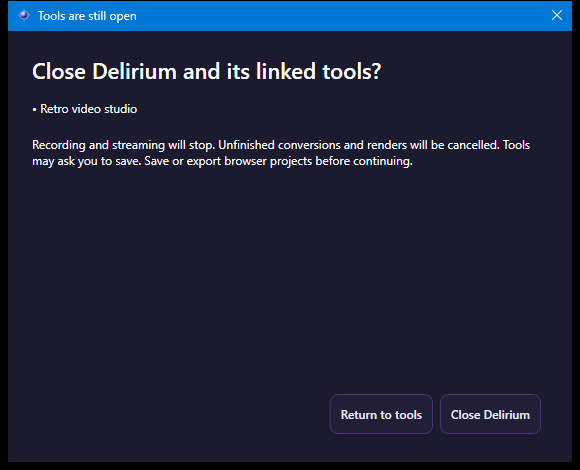
  4. When closing Delirium, review its list of linked tools and jobs. Return to tools preserves them; Close Delirium stops streams, finishes recordings and cancels unfinished conversions or DVD builds.
  5. If a native tool needs a save decision, finish its dialog before closing Delirium again. Native tool windows are not force-closed past save prompts.

Section colors also apply to integrated creation tools and their linked windows. Media artwork is independent of the interface palette. Some advanced DVD panels keep their classic styling.

Delirium shutdown warning listing linked tools, with Return to tools and Close Delirium buttons
Shutdown review in Desktop 1.3.2

Messaging & social accounts

Open Social & Messaging in the sidebar, then choose Messaging or Social media. A service card opens its own tab inside Delirium; sign in with that service. Close unused tabs to release their browser resources. Some services restrict embedded sign-in or require a desktop client.

For the combined inbox, activate your Delirium account, choose Add connection and enter a scoped credential plus the authorized conversation ID. Slack needs the appropriate history and write scopes. Discord uses a bot added to your channel, with message history/content permissions as needed. Telegram uses a dedicated bot with no other webhook or poller. Matrix uses your homeserver access token and room ID; encrypted content stays in Element.

Refresh checks each connection at most once per 65 seconds and respects rate limits. Select a message or connection before replying; Enter sends and Shift+Enter adds a new line. Replies use that token’s identity. A failed or uncertain send keeps your draft and does not retry automatically. Tokens are protected for your Windows account. Recent inbox messages remain in memory while the app is open.

Teams & project sharing2 topics

Project file handoffs

Export a project package, review the files, and save it on your PC or in a folder synced by your own cloud service. Share the package with a teammate through a service you already use.

  1. Open Project sharing, choose a project folder, and select Review project files. Choose the files to include, then select Export selected files.
  2. Common credential files and private Delirium data are excluded by default. Review the file list and contents before sharing; automatic filters cannot recognize every secret.
  3. Save the reviewed package, then share it through your own storage or messaging service.
  4. On the receiving PC, select Review package, check the contents, then choose Import into new folder.
  5. The recipient reviews the package and imports it into a new folder. Importing does not run the project or overwrite an existing workspace.

Project packages are local file handoffs, not live collaboration or cloud task execution. Delirium does not host or automatically upload them; your chosen sharing service has its own limits and charges.

Team projects

The host PC must stay online. Connect over your LAN or an existing private network/VPN. Delirium does not provide a cloud host or automatic internet relay.

  1. Open Team projects. Expand Host a team project, enter a project name and your display name, then select this PC’s LAN or VPN address. The loopback address is for this PC only.
  2. Choose Review project to host, uncheck private or unwanted files, and select Host reviewed project. Delirium creates a separate shared copy; your original folder stays separate.
  3. Create a private invitation for each teammate. They paste it under Join a team project and choose an empty local folder. Keep invitations private and allow only trusted teammates.
  4. Queue team prompt assigns work without running it. Send and run on this PC uses your configured AI access after confirmation. Other teammates can claim queued tasks; a task is claimed only once.
  5. Use View task and changes to inspect a proposal. Open proposed files for full contents, including large or binary files. Only the owner can Accept reviewed changes or restore a shared version.
  6. Use Project files and local edits for the text editor, or open the shared working folder in your own editor. Save locally, then review and publish changes. Unsaved editor text is never replaced by polling.

Working copies are not security sandboxes. Run only trusted projects and review AI permission requests. File filters cannot identify every secret.

Team rooms support up to 500 files, 1 MiB per file and 16 MiB of shared content, with bounded chat and task history. Start a new room when its retained history is full.

Accepted revisions sync to connected teammates. Local edits remain private until published for review. This is file-version sync, not live keystroke editing.

Included at the same Delirium plan prices. Each participant needs their own app access. AI usage and any network services you choose remain separate.

AI, connections & voice8 topics

Task routing & controls

Open Routing tools to manage profiles, fallback order, local-only mode and usage reports. Use Connected app options to preview eligible models and estimates.

Preferences for the task

Choose a saved routing profile for your task instead of changing your defaults each time.

Fallbacks you can follow

Set a preferred order for enabled fallback connections. Confirmed availability failures can move to the next eligible connection; uncertain or partial work still stops for review.

Keep Auto on your PC

Use local-only mode in Auto: apps & models to restrict that selection to configured local models. Direct cloud selections and other AI apps have their own settings.

Compare before sending

Preview eligible models, configured costs and routing estimates without sending your task to a model. Prices and rankings are estimates, not a guarantee of savings or quality.

See your recorded usage

Search recorded API and local-model requests, review available usage and cost fields, and export a local CSV or JSON report. Native app activity and provider invoices are not included.

Unknown costs remain unknown. Check your provider account for the final bill.

Do I need an AI account?

File tools, saved reports, and PC cleanup do not require an AI provider key. For AI conversations, use your signed-in Codex, Claude Code or Gemini CLI client, or connect optional provider API access or a local Ollama / LM Studio server in AI connections.

Your Delirium membership does not include third-party AI subscriptions or API usage. A provider’s chat subscription and API billing may be separate. Local models need compatible hardware and downloaded model files.

Check what each provider supports →

Connected AI apps

  1. Install and sign in to a supported Codex, Claude Code or Gemini CLI client.
  2. Open AI chat & tasks in Delirium. Auto: apps & models is selected by default.
  3. Open Connected app options. Choose the connections you allow and save your preferences. API connections require their own credentials and may add charges.
  4. Write your task and press Send. Delirium shows the chosen connection, progress, approval requests and returned answer.

Confirmed availability failures can trigger the next eligible connection. Permission denials, partial work and uncertain failures stop for review. Press Stop to cancel the current request and prevent fallback.

Automatic startup and shutdown handoff

Delirium reconnects remembered integrations automatically at startup with active membership access and restores its managed settings before full shutdown, retaining your own edits. You can also use Disconnect Delirium or Reconnect Delirium in Settings or Connected app options while keeping Delirium open. Hiding to the tray keeps it connected. Open relays switch on the next request, but apps that cache configuration may need a restart. Delirium never force-closes your other apps.

Only connections managed by Delirium can be restored automatically. Manually pasted external connector settings may need to be removed in the app where you added them.

Chat, tasks and routing

Press Enter to send and Shift + Enter for a new line. Use Copy last answer to copy a response. Sending is blocked while the current request is running.

For simple chat, Auto prefers a suitable configured free connection. To allow paid fallback, open AI connections → Routing tools, load your chat cost preference, then save your choice. It starts off. Enabled connected clients and project tasks still use their own account limits and billing.

View routing diagnostics in Routing tools. The local log holds at most 2000 events and 1 MiB; the viewer shows the latest 200. It records recommendation, actual route, model confirmation, connection and preference changes. It excludes credentials, questions, answers and raw errors.

Movies, TV, Music, Games, Social video and Library are grouped beneath Media in the sidebar. Use More for wallpaper settings, downloads and less frequent media options.

AI conversations & agents

  1. Activate Delirium, then open Agents and choose New chat.
  2. Use Connections to keep your existing client routing or configure Muse Code's installed executable.
  3. For OpenAI API tools, save your key and enable API usage once. Choose chat, research or image, or use Voice. Billing is separate from ChatGPT; voice begins only when you press Start voice.
  4. Enter sends your message; Shift+Enter adds a line. Review approvals in the conversation and use Stop to request cancellation.
  5. Reconnect task only reconnects a previously accepted OpenAI background response. Interrupted tasks are never automatically submitted again.

For ChatGPT Dots, follow the official connection guide in Connections. The exported MCP configuration supports clients with local MCP tools; a cloud Dot needs its provider's supported computer connection or secure tunnel.

Compare models and review their work

DESKTOP 1.3.6

  1. Open AI chat & tasks, enable the supported connections you want to use and write a draft. Select project files explicitly when you need coding context.
  2. Open Compare models and choose two to four eligible routes. Each receives the same input in an independent session. Select Also check and combine the answers if you want an additional synthesis request; choose its model and review the cost information.
  3. Send explicitly. Monitor individual results and approvals, or use Stop to cancel supported active requests. A failed route does not erase completed answers.
  4. Read original answers and the combination, including source links, unconfirmed model labels and disagreements. Check consequential claims yourself.
  5. For coding results, open Review generated files after the comparison stops. Read the source, export reviewed text or preview a local HTML snapshot. Preview blocks online resources, downloads and Delirium control messages; it does not run a backend.

Avatars & tutorial includes guided steps for comparison, combination and file review. Drag the tutorial card when needed or choose Auto position. The guide pauses during fullscreen playback and never sends a task for you.

Freebuff and Gvoid Studio open inside Delirium through the AI directory. Their own accounts, credits and limits still apply. An interactive launcher is not a verified automatic send/read connection.

Voice controls

DESKTOP 1.3.8 / VOICE

Open Wikipedia inside Delirium from the assistant Tools menu or a localized voice command. The encyclopedia follows your selected language and is a reference website, not an AI model connection.

Choose English, Spanish, French, German or Portuguese. Voice controls share the app display-language setting.

Hold F8 to speak or explicitly start continuous listening. The microphone starts off. Changing language stops microphone input.

English, Spanish, French and German recognition need compatible installed Windows speech packs. Portuguese offline recognition is included.

The searchable guide shows translated commands and missing speech support. Portuguese continuous listening accepts assistente as its command prefix. Spoken answers need a matching installed Windows voice.

Translated commands retain confirmations, account requirements and AI spending limits. Local voice controls need no new paid service. Speech accuracy varies with microphone, noise and accent. Some advanced help and tutorial narration remain English.

Local AI & reusable workflows

DESKTOP 1.3.10 / AI & RETRO SETUP

Search explicitly selected project documents locally, then choose excerpts to include in an AI request. Delirium encrypts the stored text for your Windows account. Keyword search has no embedding-service fee; files are sent only when you include their context and submit.

Inspect context size and truncation, compare and restore custom recipe revisions, or save a research → draft → review workflow. Start each step explicitly and review its result. Your connected AI service retains its own account requirements and charges.

Connect separately running local MCP servers, inspect tool arguments and approve each call. This version supports loopback Streamable HTTP with manual calls; remote OAuth and stdio are not included.

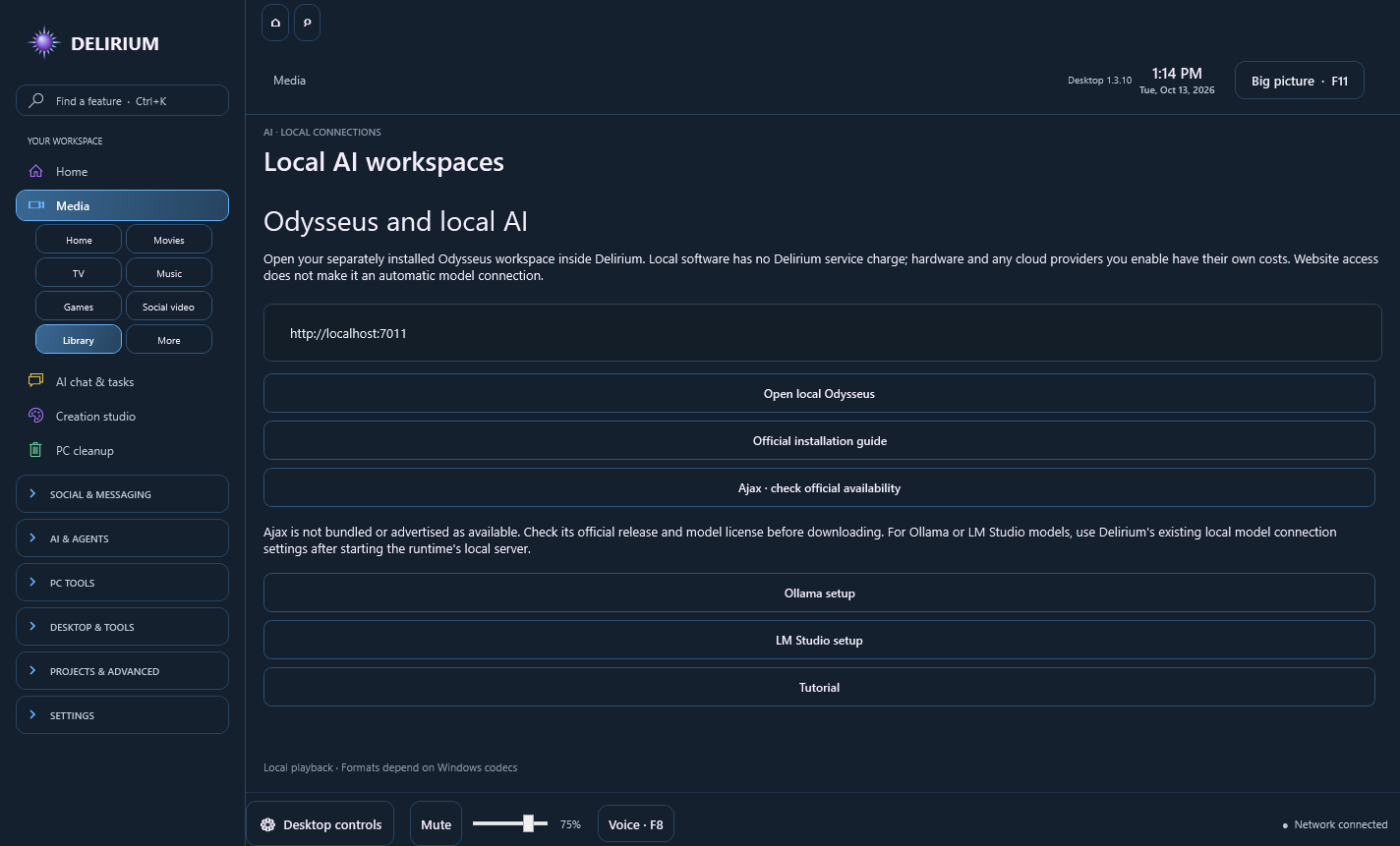
Open a separately installed Odysseus workspace inside Delirium. Ajax links to its official availability page and is not bundled as an available model. Retro gaming brings together official frontend and emulator setup options; install those programs separately and use your own game files.

Delirium local AI setup with an Odysseus loopback address and official model availability links
Local AI setup · Desktop 1.3.10.
Media, creation & publishing4 topics

Recording & streaming

  1. Open Creation studio and Reaction Studio. Capture devices stay off until you add a source.
  2. Add your sources, then use Properties, Filters or More for transforms, crops and duplication. Audio controls are in Mixer.
  3. Use Scenes for scene collection import/export, and Settings for encoders, bitrates, transitions and compatible engine plugins. Stop outputs before changing encoder or video settings.
  4. In Stream, add each destination's server URL and stream key from its own dashboard. Kick uses an account-specific server. Save the destinations, enable those you want, then start them together or individually.
  5. Allow upload capacity for every destination. Use headphones when monitoring audio, and follow each service's current simulcasting rules.

Shortcuts while the studio is visible: Ctrl+Shift+R record/stop, Ctrl+Shift+P pause/resume, Ctrl+Shift+S stream/stop and Ctrl+Shift+1–9 switch scenes. Hide keeps outputs running; Close stops and finalizes them.

Only compatible Windows x64 engine plugins are supported. Frontend, menu, dock and Qt plugins need additional integration; studio mode, replay buffer and virtual camera are not included in this build.

Publishing & campaigns

NEW IN DESKTOP 1.3.2

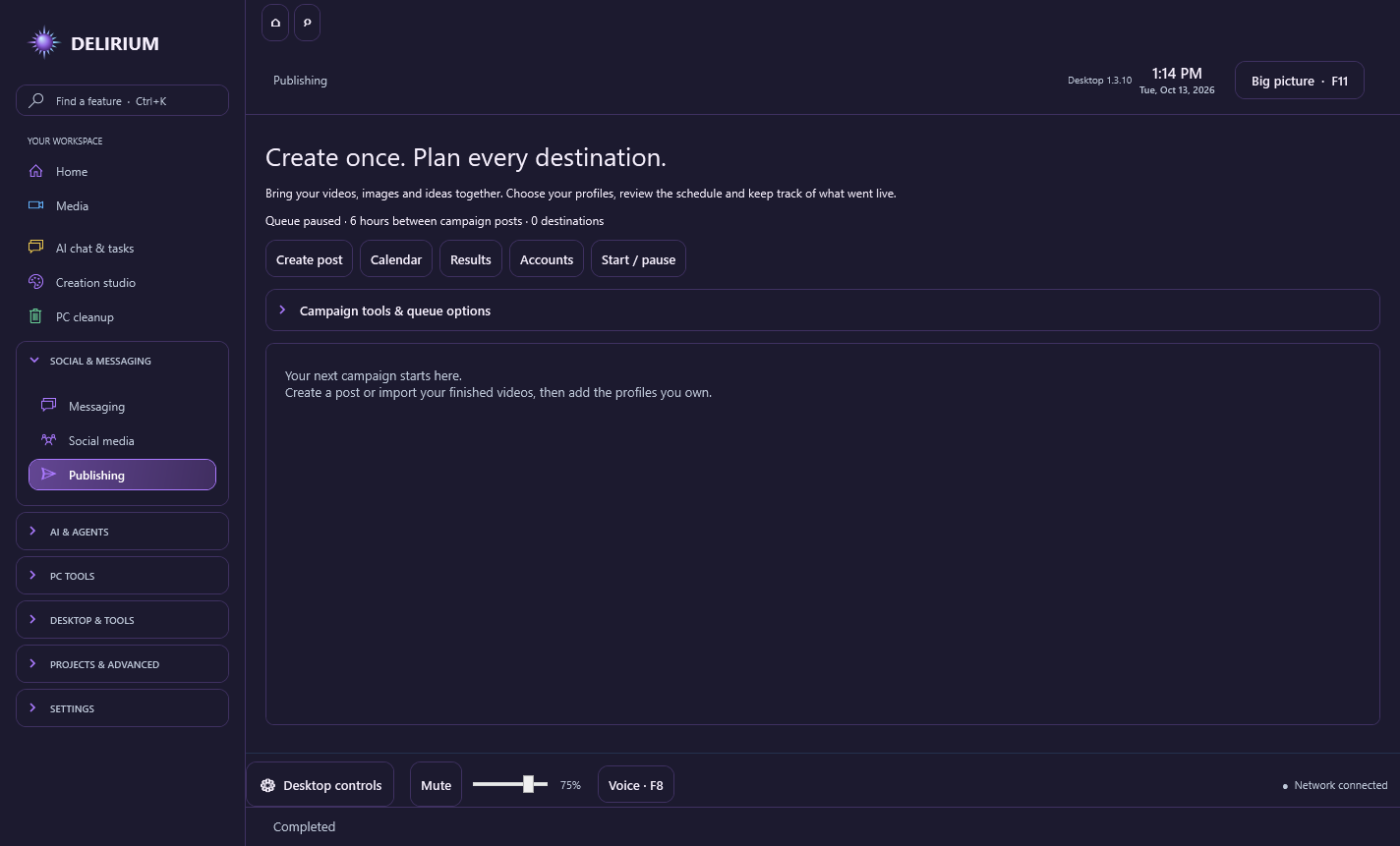
Build a campaign with videos, images and text in Delirium’s Publishing workspace. Prepare captions for each platform, choose multiple profiles, review a calendar and keep confirmed post links together.

Your campaign, organized

Create posts or import campaign packs. Set platform-specific captions, tags and formats, then choose the profiles that should receive each post.

A steady schedule

Six hours between campaign posts by default, with a configurable interval. Processing continues while Delirium is open or in the tray. Closing the app pauses it; missed posts do not publish in a burst.

Connected publishing

Direct connectors support YouTube video, Discord channel webhooks, and Mastodon video, images and text. Each needs the service’s account, permissions and connection setup. YouTube requires a registered desktop OAuth client; unreviewed API projects may keep uploads private.

Other social platforms

Use signed-in posting pages inside Delirium with prepared captions and media paths. These destinations require manual posting until an approved API integration is connected. A queue entry alone does not mean a post was published.

Know what went live

Review confirmed links, pending manual actions and uploads needing review. Export posting reports. Views, clicks and sales remain in the platforms’ or website’s analytics.

Protect your queue

Saved credentials are encrypted for your Windows account. Profile checks, duplicate protection and review after interrupted uploads reduce accidental repeat posts.

Delirium Desktop 1.3.10 Publishing workspace with campaign import, calendar, results and account controls
Earlier Publishing workspace · Desktop 1.3.10.

Delirium account and activation requirements remain. Platform policies, permissions and API availability apply. No paid advertising or third-party posting service is bundled.

Creative workflows

NEW IN DESKTOP 1.3.3

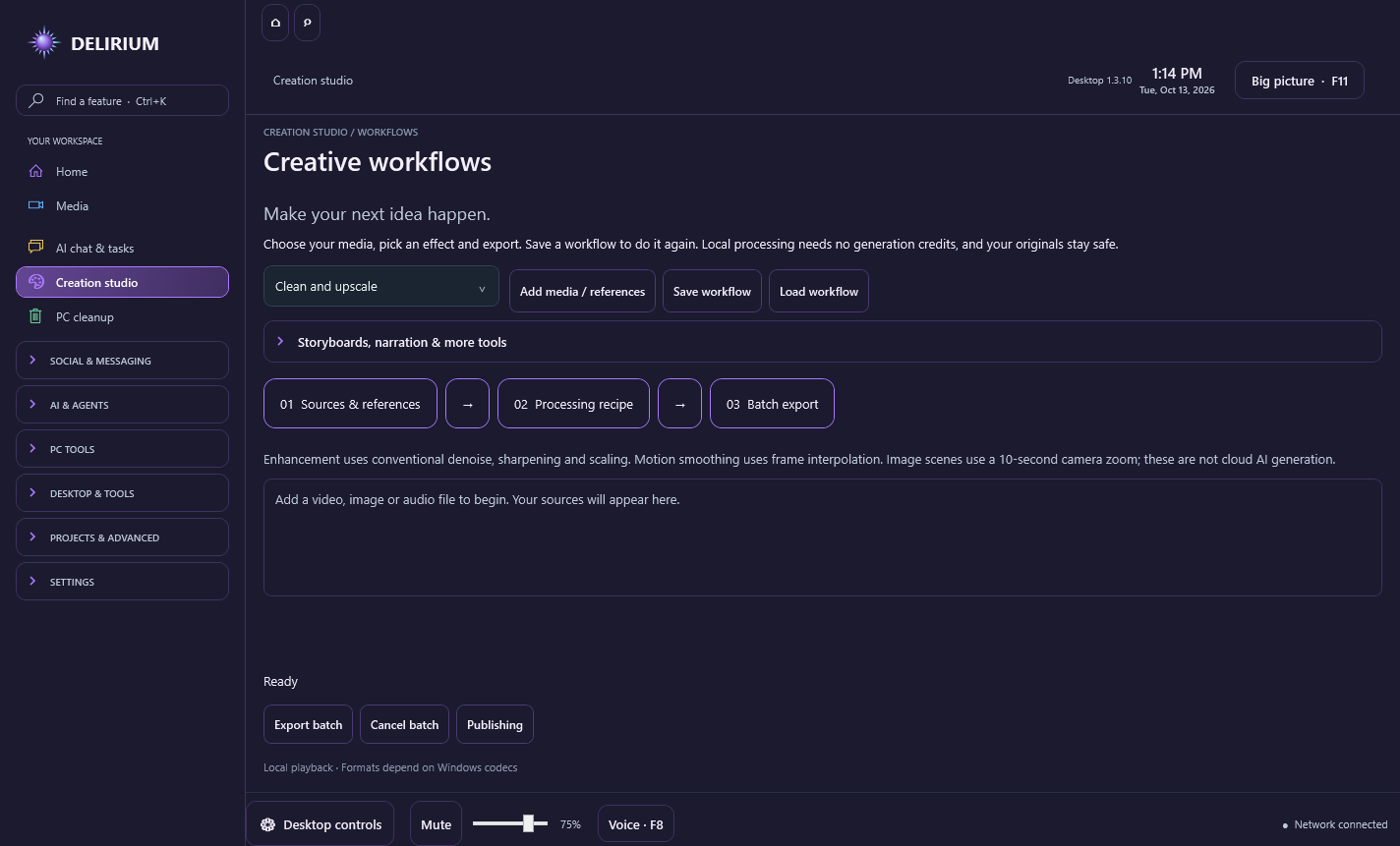
Plan scenes, prepare narration and captions, and process batches using the media engine already included in Delirium. These local tools have no additional provider service fees.

Scenes and reusable projects

Save processing recipes and local media references as workflow files. Write reusable shot plans with camera angles, dialogue and transitions. Turn a still image into a ten-second zoom scene.

Voice and captions

Export narration with installed Windows voices. Write and export timed SubRip captions, attach a selectable subtitle track, or combine video with narration or music.

Prepare every format

Batch video cleanup, scaling, frame interpolation, vertical clips, horizontal formats, thumbnails, contact sheets and GIF previews. Extract audio, normalize loudness or reduce noise. Cancel a batch while preserving completed exports and originals.

Your colors, with atmosphere

Neon accent glow and responsive hover effects follow your chosen palette. Section colors, a shared custom accent, light and dark appearances stay available.

Delirium Desktop 1.3.10 creative workflow workspace with processing recipes, storyboard, narration, captions and batch export controls
Earlier creative workflows · Desktop 1.3.10.

These are conventional local media tools, not commercial cloud AI generators. Windows voice quality depends on installed voices. Motion smoothing processes up to five minutes; vertical clips up to sixty seconds; reverse clips use the first thirty seconds without audio. Automatic AI transcription and optional external generation retain their provider requirements and charges. Delirium account and activation requirements remain.

Creative websites & tools

DESKTOP 1.3.9 / CREATIVE TOOLS

Open Photopea and PhotoCraft inside Creation Studio for layered image editing. Use Piskel for pixel art, animated sprites and sprite sheets. These websites use Delirium’s shared browser runtime; save or export your projects in each tool. PhotoCraft is early alpha software.

Check supported media for Google’s SynthID watermarks from AI sites or Browser creative tools. Google sign-in is required. A missing watermark does not prove that content is human-made, and Delirium does not upload files automatically.

Find Android apps in Media → Your library → Apps & Games. Delirium detects an installed BlueStacks player and launches it on demand, or opens its official setup website. BlueStacks runs separately and requires its own installation; it is not included in the download.

Step-by-step tool tutorials

Select Tutorial in the Photopea, PhotoCraft, Piskel or SynthID toolbar, or on the Android apps page for BlueStacks. Move the tutorial window out of your way and use Back, Next or Restart at your own pace.

  • Photopea: open a project, edit layers, save PSD and export an image.
  • PhotoCraft: edit a copy, use layers, save regularly and verify exports from the early alpha editor.
  • Piskel: draw frames, preview animation and export GIFs or sprite sheets.
  • SynthID: review access requirements, choose a file yourself and interpret watermark results carefully.
  • BlueStacks: review requirements, install the separate player, refresh detection and launch Android apps.

The walkthroughs provide instructions; they do not operate third-party controls, accept terms, upload files or install software for you. Some advanced tutorial instructions remain English.