Choose what closing the window does
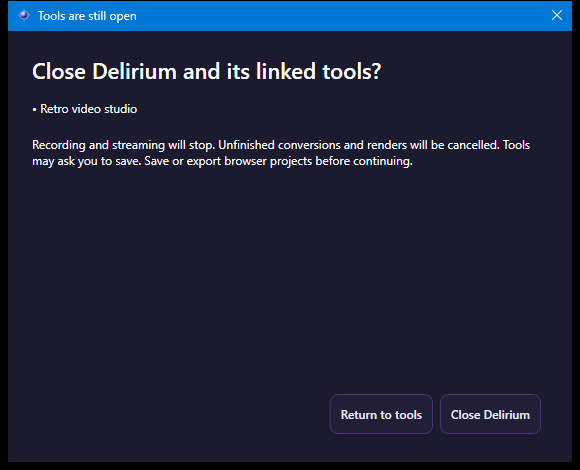
When you close the window, choose Hide in tray or Shut down. Select Don’t ask again to remember your choice, and change it later in Settings → Desktop preferences.
Hiding keeps Delirium running and connected. Shutting down restores the connection settings managed by Delirium before the app exits.
Completion sounds, tray and language
Open Settings → Desktop preferences to choose completion sounds, background completion notifications, close-to-tray behavior and your interface language. When Delirium is in the system tray, look for its icon in Windows hidden icons. Double-click the icon to reopen the window, or right-click it and choose Exit Delirium to quit. Windows decides whether the icon appears directly in the taskbar or its hidden-icons area.
Choose English, Spanish, French, German or Portuguese under Display language, then select Apply language. Main navigation, settings and common controls are translated. Some advanced help, reports and Windows messages remain in English.
App cleanup
Open Maintenance & security and choose Analyze caches. Delirium reviews older temporary files, DirectX shader caches, and supported Chrome or Edge caches. Close browsers before cleaning their caches, select findings, then choose Review selected cleanup and read the confirmation. Cleanup moves files into Delirium’s recovery storage; these copies still use disk space. Use Restore cleaned files if you need them back.
After checking that your apps work, use Reclaim backup space to select recovery copies you no longer need. Permanently remove selected backups opens a separate confirmation. Removing these backup copies frees their disk space and ends the ability to restore those files. Use Restore before removing if you need a copy first.
Under Installed applications, choose Manage / uninstall apps to review software in Windows Settings.
Windows security
Open Maintenance & security to check Microsoft Defender availability and status. Choose an available scan when you want Windows to check for threats. Use Windows Security for protection history and threat actions. Administrator approval or an active Microsoft Defender service may be required.
PC information
Open PC information for a hardware summary and component categories. Select Windows, processor, memory, motherboard, graphics, storage, audio, network or sensors for details. Refresh the snapshot when needed, select individual values to copy, or use Copy PC information and Save PC report. Unavailable readings stay marked as unavailable; thermal-zone readings are not CPU or GPU temperatures. This page does not change your Windows configuration.
 DELIRIUM